

Your RunSitePro Files,
Right There in Finder & File Explorer
RunSitePro FileSync puts your company's entire file system on every computer in the office - photos, documents and drawings, organised by customer and project, syncing both ways. Like OneDrive or Dropbox, but it's your building business.
For teams on RunSitePro · Sign in with your existing account · macOS 14+ and Windows 10/11
The File System Is the App
Every quote, photo, document and drawing in RunSitePro already lives in one organised place - folders for every customer and every project, kept tidy automatically.
FileSync brings that same file system onto your team's computers. Open Finder on a Mac or File Explorer on Windows and it's just there - a normal folder that behaves like OneDrive or Dropbox. Files download when you open them, new files sync up automatically, and everyone's view stays in step with the office, the site, and the app in everyone's pocket.
No portal to log into. No exporting and re-uploading. No emailing files to yourself. The folder on your desktop and the app on your phone are the same thing.
- Same files as the RunSitePro web and mobile apps - always in sync
- Read-only Drawings area in every project folder
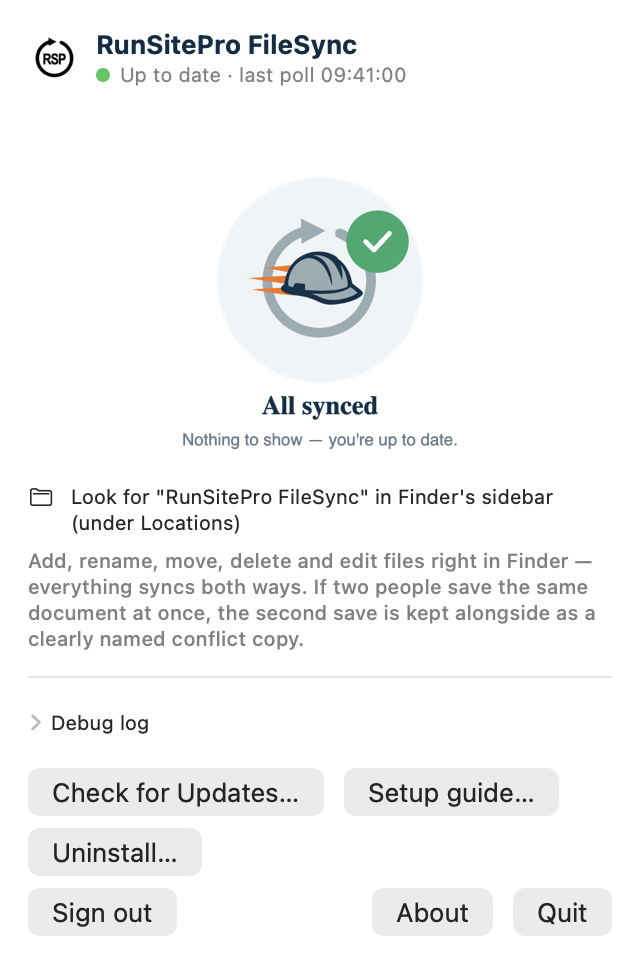
- Sync status at a glance in the menu bar (Mac) and system tray (Windows)
Why Builders Love FileSync
Built for the way building companies actually work - office staff in Explorer and Finder, site teams on their phones, everyone looking at the same files.
Site Photos Appear in the Office by Themselves
A photo taken on site with the RunSitePro mobile app is on the office computer moments later - already filed in the right project folder. No WhatsApp, no email, no cables, no 'can you send me that again?'
Your Real File System, Not a Portal
The whole company file tree - every customer, every project - sits in Finder and File Explorer as a normal folder, exactly like OneDrive or Dropbox. Open files in the programs you already use. No browser, no exporting, no double-handling.
Works Both Ways
Drop a file into a project folder on your computer and the whole team sees it on their phones straight away. Rename it, move it, or save changes - everything syncs back automatically.
Doesn't Fill Your Hard Drive
Files download on demand, just like OneDrive. You see the full company file system, but a file only takes up space on your computer once you open it. A whole company's archive fits on any laptop.
Your Permissions, Everywhere
FileSync follows the same rules as the RunSitePro apps. Each team member sees exactly the files they're allowed to see, and only a file's owner or an administrator can delete it - anyone else's delete is simply restored, with an explanation.
Copes With Real-World Internet
Patchy site Wi-Fi? Big uploads resume from where they left off instead of starting again. Work offline and your changes queue up and sync when you're back. If two people edit the same document, nobody's work is lost - a clearly named conflict copy is created.
Up and Running in Two Minutes
1. Install
Download FileSync for Mac or Windows and run the installer - it takes under a minute.
2. Sign In
Use your existing RunSitePro account. Your permissions come with you automatically.
3. Open Your Files
The company file system appears in Finder or File Explorer and stays in sync from then on.
Download RunSitePro FileSync
Free for RunSitePro teams. Install it on every computer in the office - it keeps itself up to date automatically.
FileSync signs in with your RunSitePro account. Not on RunSitePro yet? Join the waitlist.
Installation Guide
A couple of clicks on either platform. Here's exactly what to expect.
Installing on Mac
- 1
Download and run the installer
Download RunSitePro FileSync for Mac below and open the installer. Follow the steps - when it finishes, FileSync opens by itself and a welcome window walks you through the rest.
- 2
Sign in
Sign in right there in the welcome window with your usual RunSitePro account - the same login you use for the web and mobile apps.
- 3
Allow FileSync in Finder
macOS will ask for permission to add RunSitePro FileSync to Finder the first time. Click Allow - this is Apple's standard approval for sync apps like OneDrive and Dropbox.
- 4
Find your files in the Finder sidebar
“RunSitePro FileSync” appears in Finder's sidebar under Locations - the same place OneDrive and Dropbox live. Your company's folders are all there, downloading on demand as you open them. The round RSP icon in your menu bar shows sync status.
Installing on Windows
- 1
Download and run the installer
Download RunSitePro FileSync for Windows below and run the installer. If Windows shows a “Windows protected your PC” message, click “More info” then “Run anyway” - check the publisher says Creative Construction Solutions Ltd, our digital signature. The install itself takes seconds and FileSync opens by itself when it's done.
- 2
Sign in
A welcome window walks you through the rest - sign in right there with your usual RunSitePro account, the same login you use for the web and mobile apps, and pick your company.
- 3
Find your files in File Explorer
“RunSitePro FileSync” appears in File Explorer's sidebar, just like OneDrive. Every file shows a little status badge - a cloud for online-only files, a green tick for files stored on your computer.
- 4
Keep an eye on the tray icon
The round RSP icon near the clock shows what FileSync is doing - syncing, up to date, or offline. Click it any time to see recent activity.
Frequently Asked Questions
One System. Office, Site and Pocket.
FileSync completes the RunSitePro stack: the web app runs the business, the mobile app runs the site, and FileSync puts every file on every desk - automatically.
Not a RunSitePro customer yet? Join the waitlist